Why Would I Do This?
Printing a quiz allows you to access the questions outside of Canvas, which can be useful if Canvas is down or you need to access it for any other reason.
Does this work with Classic Quizzes?
No, Classic Quizzes does not support printing a quiz. To print a classic quiz, you'll need to open the quiz and print your screen (which may involve several screens for a long quiz).
Instructions:
Open Build Page
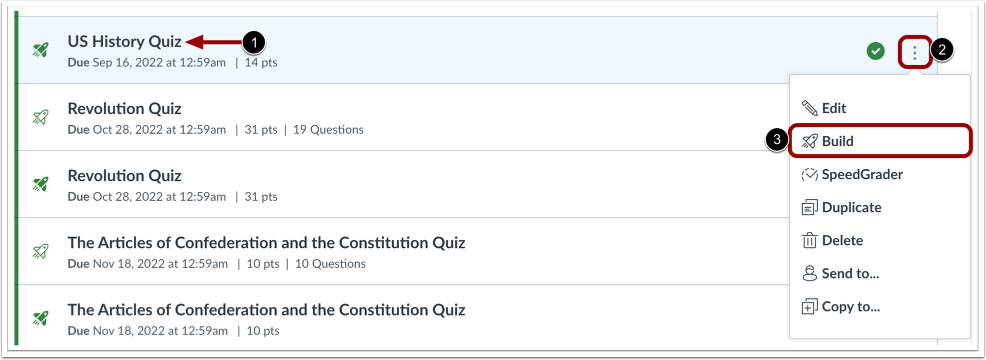
- To print a quiz, find the quiz you want to open [1].
- To open the Build page, click the Options icon [2] and then click the Build link [3].
Print Quiz
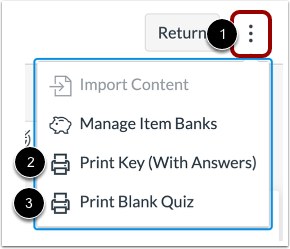
- To print a quiz, click the Options icon [1] and select one of the print options.
- To print a quiz key with answers, select the Print Key (With Answers) option [2]. The printed quiz looks similar to the New Quizzes build page.
- To print a blank quiz with no answers shown, select the Print Blank Quiz option [3]. The printed quiz looks similar to the student's view while taking a quiz.
- Note: The One Question at a Time option needs to be disabled in the quiz settings to be able to print a quiz with multiple questions.
Select Text Size
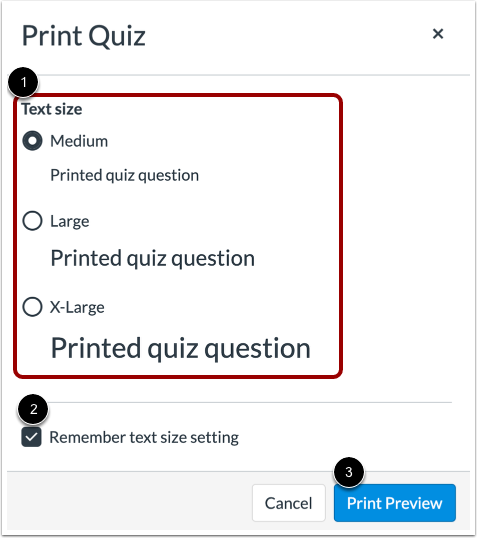
- To select a text size for the printed quiz, select a text size option [1]. You can print the quiz with medium text, large text, or extra large text. Medium text is the default size.
- To remember your text size setting, click the Remember text size setting checkbox [2].
- To open the print preview, click the Print Preview button [3].
Select Print Options
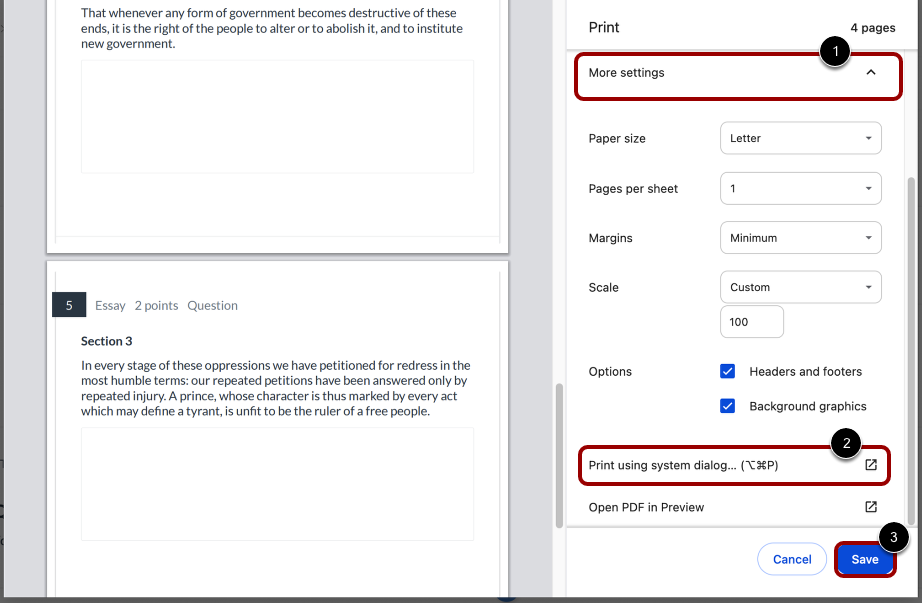
- New Quizzes uses your browser’s print dialog window to print the quiz. You can select a different printer and choose other printing options, such as layout, pages, and color.
- To print your quiz, click More settings [1], then click Print using system dialog [2].
- To save your quiz as a PDF file, click Save [3] button.